How to use WhatsApp on your computer
Learn how to open WhatsApp on your computer so you can type messages with a full keyboard.
What you will learn
In this guide, you will learn how to use WhatsApp on your computer through a web browser. This is useful when you want to type longer messages using a full keyboard or share files from your computer.
What you need
- A phone with WhatsApp installed and set up
- A computer with an internet connection and a web browser (like Chrome, Safari, or Firefox)
The steps
Step 1: Open WhatsApp Web on your computer
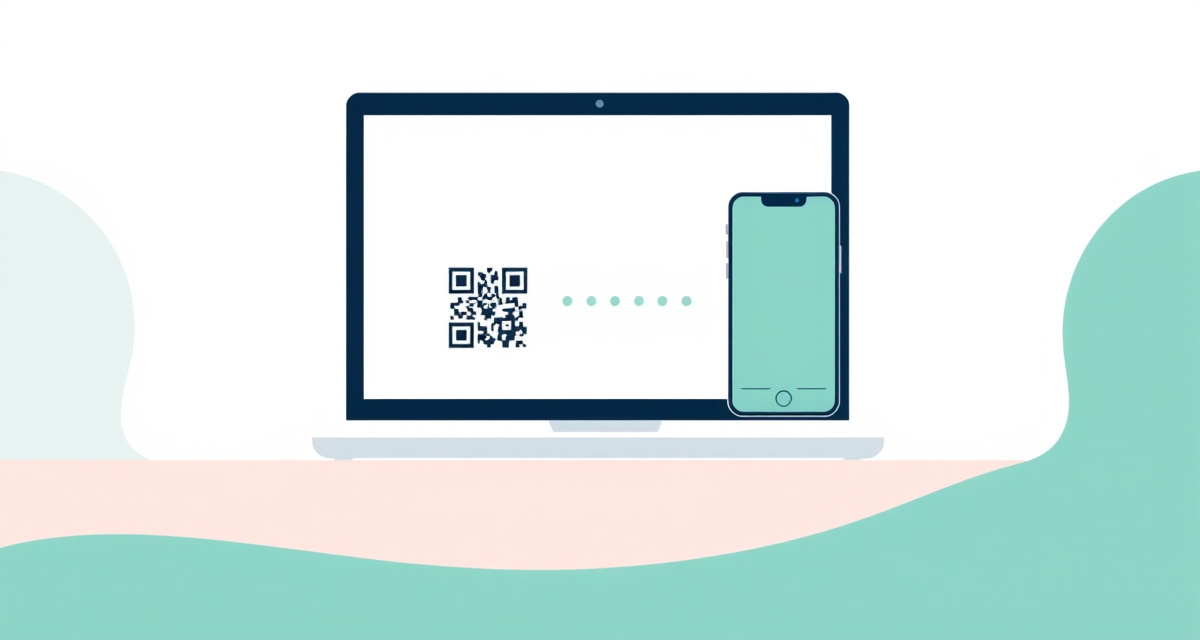
On your computer, open a web browser and go to web.whatsapp.com. You will see a large QR code (a square pattern of black and white dots) on the screen.
Step 2: Open WhatsApp on your phone
On your phone, open the WhatsApp app.
Step 3: Open the linked devices menu
On iPhone: Tap Settings in the bottom right corner, then tap Linked Devices.
On Android: Tap the three dots in the top right corner, then tap Linked Devices.
Step 4: Tap Link a Device
Tap Link a Device. Your phone may ask you to confirm with your fingerprint, face, or passcode.
Step 5: Scan the QR code
Point your phone’s camera at the QR code on your computer screen. Hold it steady. Your phone will automatically read the code and connect.
Step 6: Start using WhatsApp on your computer
After a few seconds, all your WhatsApp conversations will appear on your computer screen. You can now read and send messages using your keyboard.
Helpful tips
- Log out when done: If you are on a shared or public computer, always log out. Click the three dots at the top of the chat list on WhatsApp Web and click Log out.
- Download the desktop app: Instead of using the browser, you can download the WhatsApp desktop app from whatsapp.com/download for a better experience.
- Send files from your computer: Click the paperclip icon in a conversation to attach documents, photos, or videos from your computer.
facil.guide
Scan to read online
Frequently asked questions
Do I need to keep my phone nearby?
Newer versions of WhatsApp work even if your phone is off or disconnected. Older versions require your phone to be connected to the internet.
Is WhatsApp Web safe?
Yes, as long as you use the official website (web.whatsapp.com) and log out when using a shared computer. Never use WhatsApp Web on a computer you do not trust.
Can I make calls from WhatsApp Web?
Yes. You can make voice and video calls from WhatsApp on your computer by clicking the phone or camera icon in a conversation.
Was this guide helpful?
Didn't find what you're looking for?
Tell us what guide you need and we will write it for you.