How to set up Face ID on iPhone
Learn how to set up Face ID on your iPhone to unlock your phone, approve purchases, and sign in to apps using just your face.
What you will learn
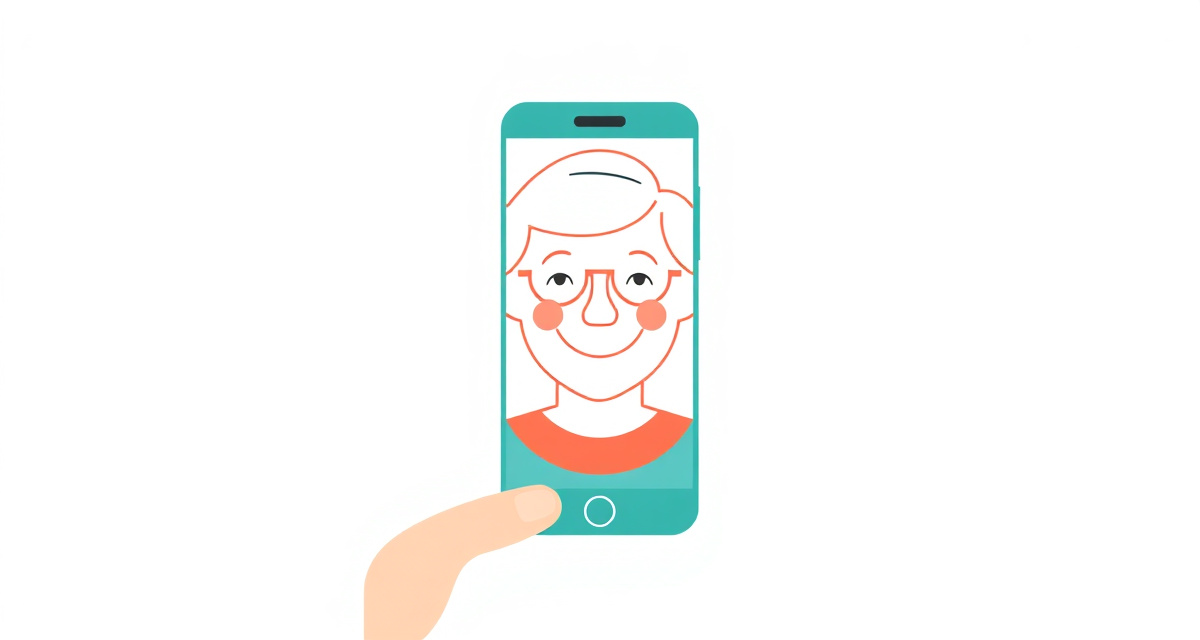
In this guide, you will learn how to set up Face ID on your iPhone. Face ID lets you unlock your phone, confirm payments, and log in to apps just by looking at your screen. It is fast, secure, and hands-free.
What you need
- An iPhone X or newer
- A passcode already set up on your iPhone
The steps
Step 1: Open Face ID settings
Tap the Settings app on your home screen. Scroll down and tap “Face ID and Passcode”. Your iPhone will ask you to enter your passcode. Type it in.
Step 2: Start the setup
Tap “Set Up Face ID”. If you see “Reset Face ID” instead, Face ID is already set up and you can reset it to start fresh. A screen will appear explaining how the setup works.
Step 3: Position your face
Tap “Get Started”. Hold your iPhone at arm’s length in front of your face. Make sure your entire face is visible in the circular frame on the screen. Remove anything that covers your face (but keep your glasses on if you normally wear them).
Step 4: Complete the first scan
Slowly move your head in a circle, as if you are tracing the outline of a bowl with your nose. This lets the camera see your face from different angles. A green progress bar will fill up as the scan completes.
Step 5: Complete the second scan
The iPhone will ask you to do the same thing a second time. Move your head in a circle again to complete the second scan. This makes Face ID more accurate and reliable.
Step 6: Finish setup
When both scans are done, you will see a message saying “Face ID is Now Set Up”. Tap “Done”. You can now unlock your iPhone by simply looking at the screen and swiping up.
Helpful tips
- Add an alternative appearance: In Face ID and Passcode settings, tap “Set Up an Alternative Appearance” if you sometimes look very different (for example, with or without a beard).
- Use Face ID for apps: In the same settings screen, you can choose to use Face ID for iTunes and App Store, Apple Pay, Password AutoFill, and other apps.
- Attention awareness: By default, Face ID requires you to look at the screen with your eyes open. This prevents someone from unlocking your phone while you are asleep.
- Keep the camera clean: The Face ID camera is at the top of your screen. If Face ID stops working well, gently clean the notch area with a soft cloth.
facil.guide
Scan to read online
Frequently asked questions
Which iPhones have Face ID?
Face ID is available on iPhone X and all newer models (iPhone 11, 12, 13, 14, 15, 16 and their variants). Older iPhones use Touch ID (fingerprint) instead.
Does Face ID work with glasses or a hat?
Yes. Face ID works with most glasses, hats, scarves, and other accessories. It learns your appearance over time and adapts to changes.
Is Face ID secure?
Yes. Face ID is very secure. The chance of someone else unlocking your phone with their face is less than one in a million. Your face data is stored only on your phone, not in the cloud.
What if Face ID stops working?
Try resetting Face ID in Settings and setting it up again. Make sure the camera at the top of your screen is clean and not covered.
Was this guide helpful?
Didn't find what you're looking for?
Tell us what guide you need and we will write it for you.