How to set up emergency contacts and Medical ID on your phone
Learn how to add emergency contacts and set up Medical ID on iPhone and Android so first responders can reach your family in an emergency.
What you will learn
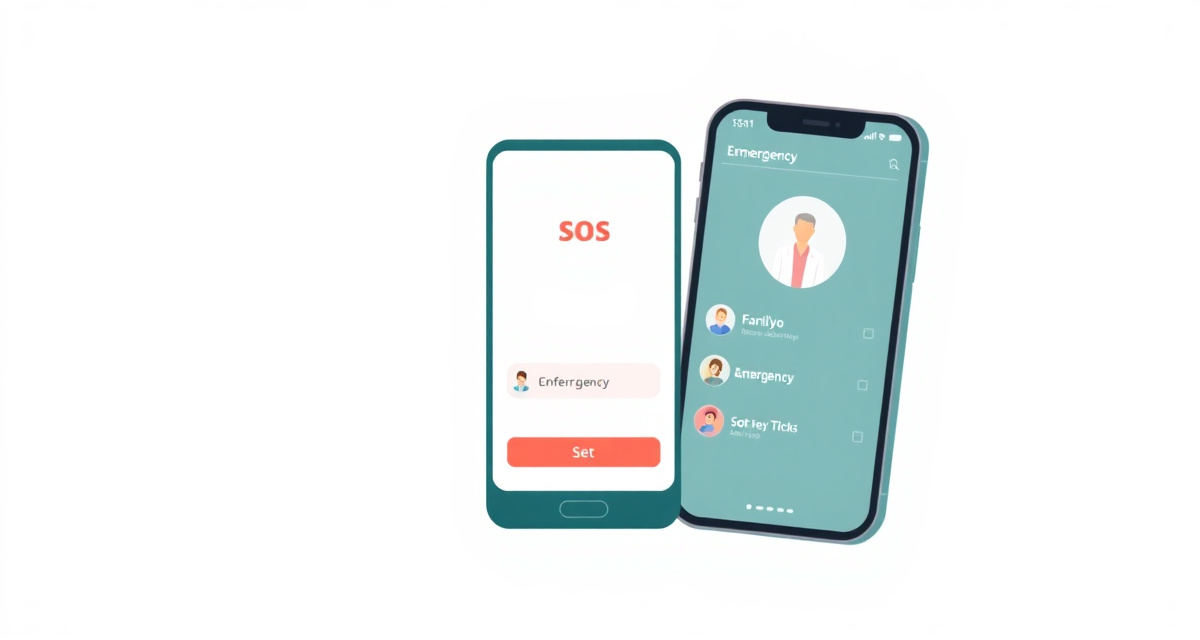
In this guide, you will learn how to set up emergency contacts and Medical ID on your phone. If something happens to you, first responders can access this information from your lock screen to contact your family and learn about your medical needs.
What you need
- Your phone (iPhone or Android)
- The phone numbers of the people you want as emergency contacts
- Your basic medical information (optional but recommended)
The steps
Step 1: Open the Health app on iPhone
On iPhone, open the Health app (it has a white icon with a red heart). If this is your first time opening it, you may need to tap Get Started and follow a few setup screens.
Step 2: Set up Medical ID on iPhone
Tap your profile picture in the top right corner, then tap Medical ID. Tap Edit. Fill in your medical conditions, allergies, medications, and blood type. Scroll down to Emergency Contacts and tap Add Emergency Contact. Choose a contact from your phone and select their relationship to you (spouse, parent, child, friend). Tap Done when finished.
Step 3: Enable lock screen access on iPhone
While editing your Medical ID, make sure the toggle for Show When Locked is turned on. This allows first responders to see your medical information and emergency contacts from the lock screen by tapping Emergency then Medical ID.
Step 4: Set up emergency contacts on Android
On Android, open Settings and tap Safety and emergency (or Emergency on some phones). Tap Emergency contacts and add the people you want. Choose contacts from your phone book. On Samsung phones, go to Settings, then Safety and emergency, then Medical info.
Step 5: Add medical information on Android
In the same Safety and emergency section, tap Medical information (or Medical info). Enter your name, blood type, allergies, medications, and any medical conditions. This information will be visible from the lock screen during an emergency.
Step 6: Test that it works from the lock screen
Lock your phone. On the lock screen, tap Emergency (or Emergency call). You should see an option for Medical ID (iPhone) or Emergency information (Android). Tap it to make sure your information and contacts appear correctly.
Step 7: Set up Emergency SOS
On iPhone, go to Settings, then Emergency SOS. Make sure Call with Hold and Release or Call with 5 Button Presses is enabled. On Android, go to Settings, then Safety and emergency, then Emergency SOS. This feature lets you quickly call emergency services by pressing the power button multiple times.
Tips
- Update your Medical ID whenever your medications or medical conditions change.
- Tell your emergency contacts that they are listed on your phone so they know to expect a call if something happens.
- Add at least two emergency contacts in case one person is unreachable.
- If you take medications regularly, include the names and dosages in your Medical ID.
Useful links
facil.guide
Scan to read online
Frequently asked questions
Can emergency contacts be reached even when my phone is locked?
Yes. That is the main purpose of this feature. Emergency services and first responders can see your emergency contacts and medical information from the lock screen without needing your passcode.
What information should I include in my Medical ID?
Include your name, blood type, allergies, medical conditions, medications you take, and your emergency contacts. Only add information you are comfortable sharing with first responders.
Does this call my emergency contacts automatically in an emergency?
On iPhone, if you enable Crash Detection or Fall Detection, your phone can automatically call emergency services and notify your emergency contacts. On Android, the Emergency SOS feature can send your location to emergency contacts.
Can I have more than one emergency contact?
Yes. You can add multiple emergency contacts. It is a good idea to add at least two people, such as a spouse and an adult child.
Will setting this up cost me anything?
No. This is a free feature built into every iPhone and Android phone.
Was this guide helpful?
Didn't find what you're looking for?
Tell us what guide you need and we will write it for you.