How to make a phone call on Android
Learn how to call someone on your Android phone using the Phone app, your contacts, or by dialing a number.
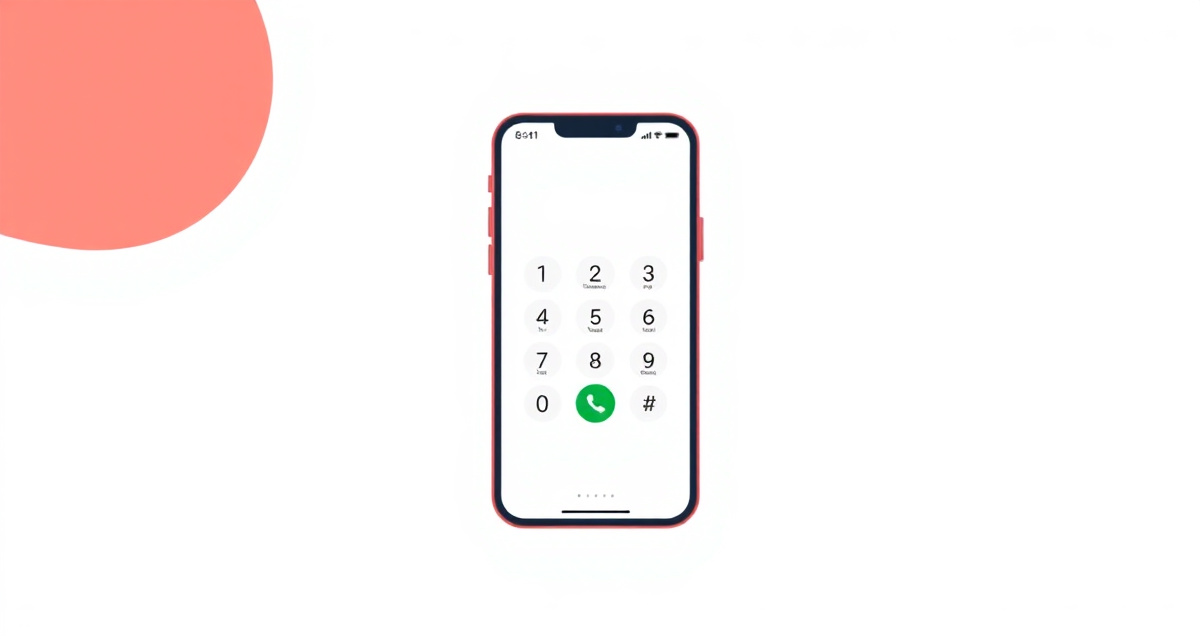
Step 1: Open the Phone app
Find the Phone app on your home screen. It usually looks like a green phone handset icon. Tap it to open.
Step 2: Choose how to call
You have three options:
- Contacts: Tap the Contacts tab to see your saved contacts
- Recent: Tap the Recents tab to see people you called or who called you recently
- Keypad: Tap the Keypad tab to type a phone number directly
Step 3: Find the person you want to call
If using Contacts, scroll through the list or use the search bar at the top to type the person’s name. If using the Keypad, type the full phone number.
Step 4: Start the call
Tap the person’s name in your contacts, or tap the green phone icon after typing a number on the keypad. The call will begin.
Step 5: During and after the call
You will see the call screen with options like Speaker, Mute, and Keypad. When you are finished talking, tap the red End Call button to hang up.
facil.guide
Scan to read online
Frequently asked questions
Can I call someone who is not in my contacts?
Yes. Use the keypad to type their phone number directly.
How do I end a call?
Tap the red End Call button on your screen.
What if the screen goes dark during a call?
This is normal. The screen turns off when you hold the phone to your ear to prevent accidental taps. Move the phone away from your ear and the screen will turn back on.
Was this guide helpful?
Didn't find what you're looking for?
Tell us what guide you need and we will write it for you.