How to connect to Wi-Fi on iPhone
Learn how to connect your iPhone to a Wi-Fi network at home, at a cafe, or anywhere else.
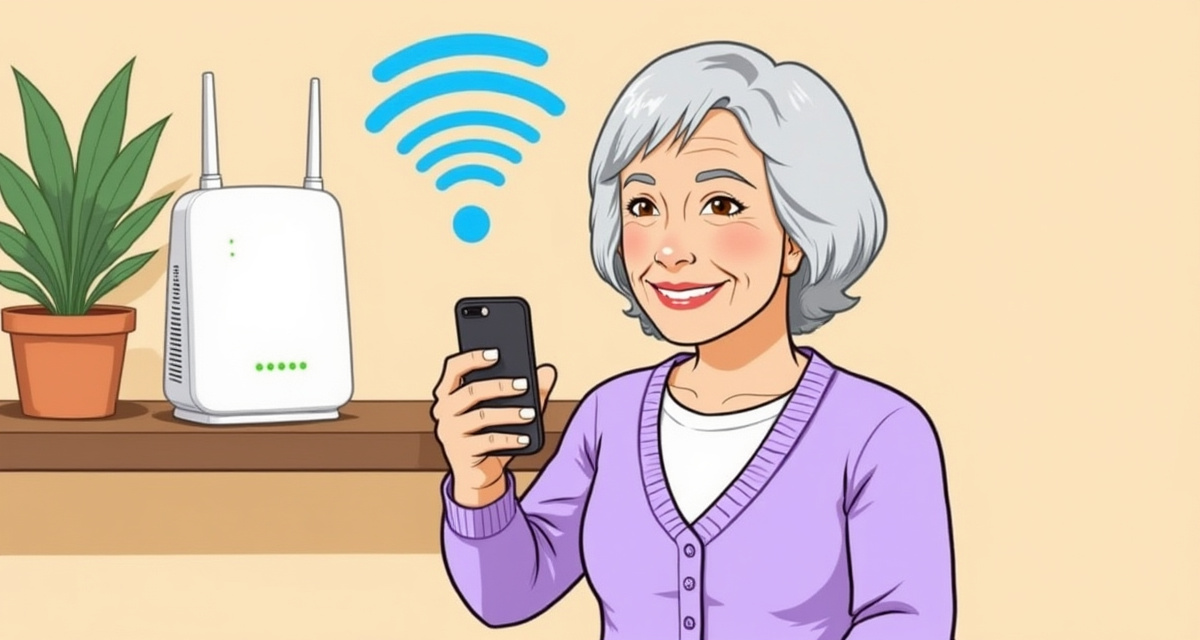
What you will learn
In this guide, you will learn how to connect your iPhone to a Wi-Fi network. Using Wi-Fi gives you a faster internet connection and saves your mobile data.
What you need
- An iPhone (any model)
- A Wi-Fi network name and password
The steps
Step 1: Open Settings
Find the Settings app on your home screen. It has an icon that looks like grey gears. Tap on it.
Step 2: Tap Wi-Fi
Near the top of the Settings screen, you will see Wi-Fi. Tap on it. Make sure the toggle next to Wi-Fi is turned on (green). If it is grey, tap it to turn it on.
Step 3: Choose your network
Your iPhone will show a list of available Wi-Fi networks. Find the name of the network you want to connect to and tap on it. This is often the name of your router or the name given by the place you are in (like a cafe or hotel).
Step 4: Enter the password
A box will appear asking for the password. Type the Wi-Fi password carefully using the keyboard. Passwords are case-sensitive, which means capital and small letters matter. When you have typed the password, tap Join in the top right corner.
Step 5: Confirm the connection
If the password is correct, a blue checkmark will appear next to the network name. You will also see the Wi-Fi icon (curved lines) in the top right corner of your screen. You are now connected.
Helpful tips
- Automatic reconnect: Your iPhone remembers Wi-Fi networks you have joined before. It will connect automatically next time you are nearby.
- Forget a network: If you want to stop your phone from connecting to a network automatically, tap the blue info icon (i) next to the network name, then tap Forget This Network.
- Check your connection: If the internet seems slow, try turning Wi-Fi off and on again in Settings. This often fixes temporary issues.

facil.guide
Scan to read online
Frequently asked questions
Why can I not see my Wi-Fi network in the list?
Make sure your Wi-Fi router is turned on. If the network is hidden, scroll to the bottom and tap Other to enter the network name manually.
What if I do not know the Wi-Fi password?
Check the back or bottom of your Wi-Fi router. The default password is usually printed on a sticker there. If someone changed it, ask the person who set up the router.
Does Wi-Fi use my phone data?
No. When you are connected to Wi-Fi, your phone uses the Wi-Fi internet connection instead of your mobile data. This can save you money on your phone bill.
Was this guide helpful?
Didn't find what you're looking for?
Tell us what guide you need and we will write it for you.