How to connect a Bluetooth speaker
Learn how to connect a Bluetooth speaker to your iPhone to play music and audio wirelessly.
What you will learn
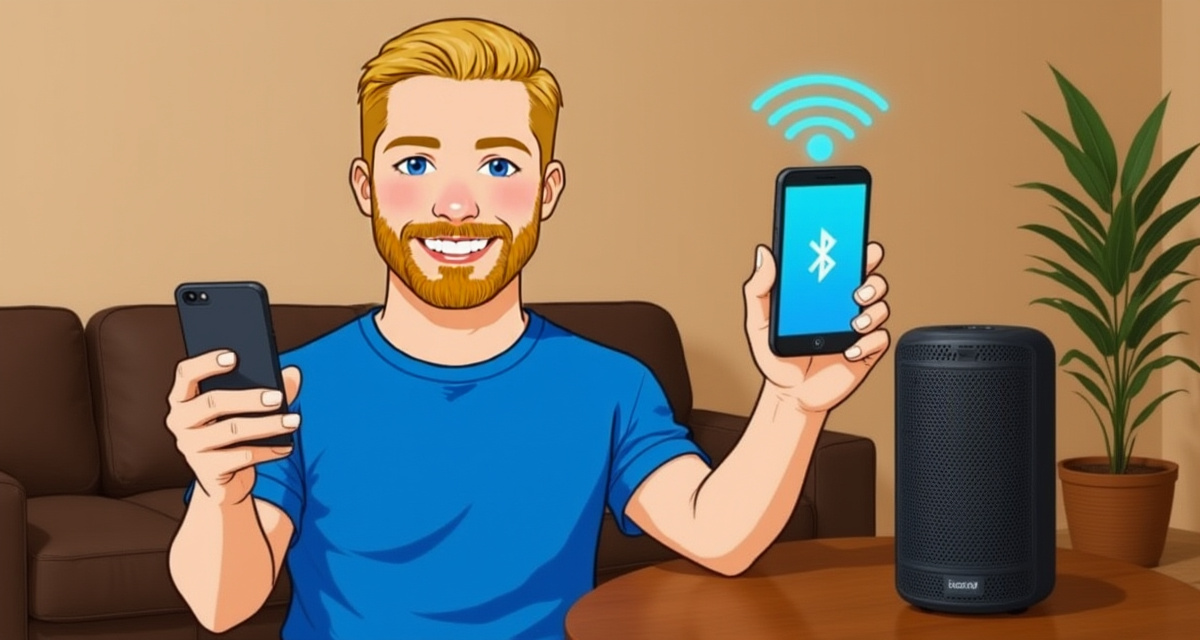
In this guide, you will learn how to connect a Bluetooth speaker to your iPhone. Once connected, you can play music, podcasts, and other audio through the speaker wirelessly.
What you need
- An iPhone
- A Bluetooth speaker (charged or plugged in)
- The speaker’s instruction manual (helpful but not required)
The steps
Step 1: Turn on your Bluetooth speaker
Press the power button on your Bluetooth speaker to turn it on. Most speakers show a light or make a sound when they turn on.
Step 2: Put the speaker in pairing mode
Press and hold the Bluetooth button on the speaker. It is usually marked with the Bluetooth symbol (a stylized letter B). A light will start flashing, which means the speaker is ready to connect.
If your speaker is brand new and being turned on for the first time, it may enter pairing mode automatically.
Step 3: Open Settings on your iPhone
On your iPhone, go to the home screen and tap Settings. It is the grey icon that looks like gears.
Step 4: Tap Bluetooth
In Settings, tap “Bluetooth”. Make sure the Bluetooth switch at the top is turned on (green). Your iPhone will start searching for nearby devices.
Step 5: Select your speaker
Under “Other Devices”, you will see a list of available Bluetooth devices. Find your speaker’s name in the list and tap on it. The name is usually the brand or model of the speaker.
Step 6: Confirm the connection
After tapping, your iPhone will connect to the speaker. The speaker’s name will move to “My Devices” and show “Connected” next to it. You may hear a confirmation sound from the speaker.
Try playing some music to make sure the sound comes through the speaker.
Helpful tips
- Automatic reconnection: Once paired, your iPhone will automatically connect to the speaker whenever both Bluetooth is on and the speaker is turned on.
- Switch audio output: If sound is still coming from your iPhone, swipe down from the top right corner to open Control Center, tap the audio controls, and select your speaker.
- Battery: Bluetooth uses a small amount of battery on both your phone and the speaker. Keep both charged for the best experience.
To learn more about Bluetooth technology and compatibility, visit bluetooth.com.
facil.guide
Scan to read online
Frequently asked questions
How far can I be from the speaker?
Bluetooth usually works within 10 meters (about 30 feet). Walls and obstacles can reduce this range.
Can I connect more than one speaker?
It depends on your iPhone and speaker. Most iPhones can only play audio to one Bluetooth speaker at a time.
Why is my speaker not appearing?
Make sure the speaker is in pairing mode (usually indicated by a flashing light) and that Bluetooth is turned on on your iPhone. Try turning both off and on again.
Was this guide helpful?
Didn't find what you're looking for?
Tell us what guide you need and we will write it for you.