Como usar o teclado do computador
Aprenda as teclas essenciais: letras, Shift, Backspace, Enter e teclas especiais.
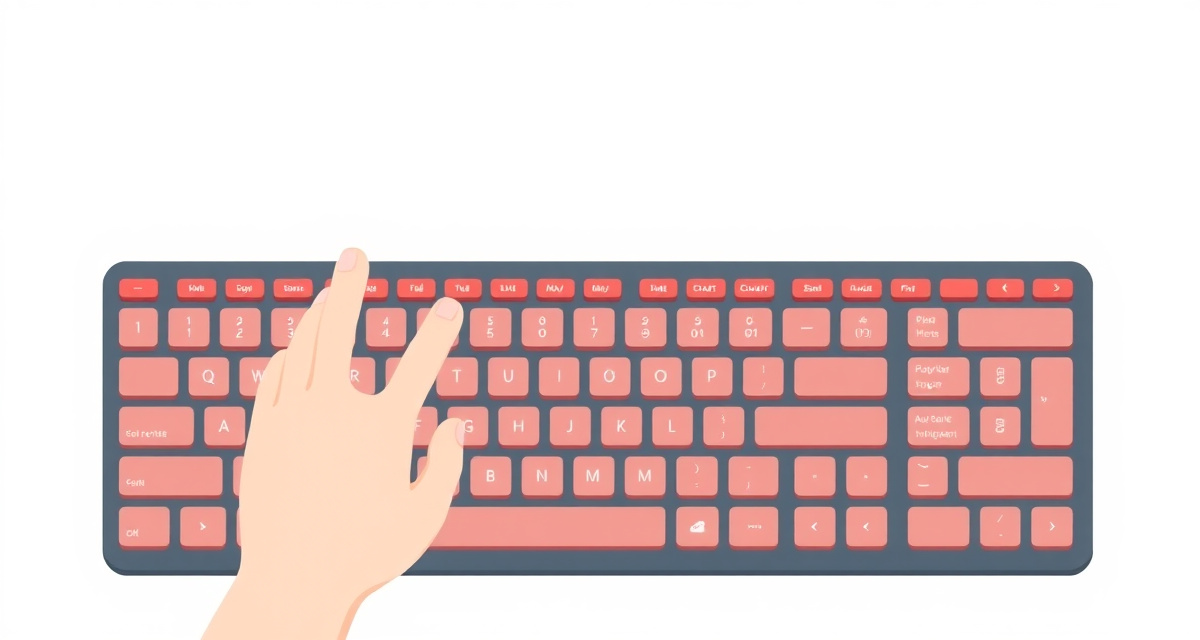
Passo 1 : The letter keys
The large area in the middle of the keyboard has all the letter keys, arranged in the QWERTY layout. Just press a letter to type it. Letters appear wherever your cursor (the blinking line) is on the screen.
Passo 2 : The Shift key
The Shift key is on the left and right sides of the keyboard, marked with an up arrow. Hold Shift and press a letter to type a capital letter. Release Shift to go back to lowercase.
Passo 3 : The Space bar
The long key at the bottom of the keyboard is the Space bar. Press it to add a space between words.
Passo 4 : Backspace
The Backspace key is in the top-right area of the keyboard. Press it to delete the letter to the left of your cursor. If you make a mistake, press Backspace to erase it.
Passo 5 : Enter
The Enter key (also called Return) is on the right side. Press it to start a new line when typing, or to confirm an action (like submitting a search).
Passo 6 : Important special keys
- Tab: Moves to the next field in a form
- Escape (Esc): Closes a menu or cancels an action
- Ctrl (or Cmd on Mac): Used with other keys for shortcuts. For example, Ctrl+C copies and Ctrl+V pastes
- Arrow keys: Move your cursor up, down, left, or right without using the mouse
facil.guide
Scan to read online
Perguntas frequentes
How do I type special characters like @ or #?
Hold the Shift key and press the number key that has the symbol printed on it. For example, Shift + 2 gives you @.
What does Caps Lock do?
When Caps Lock is on, every letter you type will be uppercase. Press it again to turn it off. A small light on the key may indicate if it is on.
What is the difference between Backspace and Delete?
Backspace removes the character to the left of your cursor. Delete removes the character to the right.
Este guia foi útil?
Nao encontrou o que procura?
Diga-nos que guia precisa e nos escrevemos para si.