Cómo actualizar tu teléfono Android
Aprende a buscar e instalar actualizaciones en tu teléfono Android.
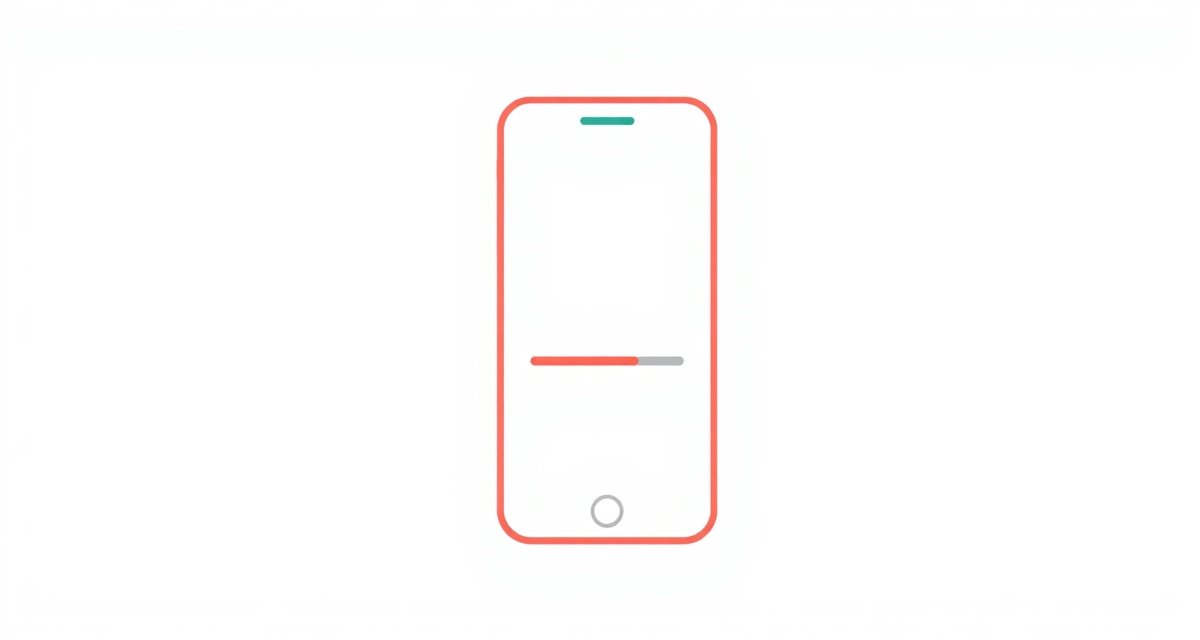
Paso 1 : Connect to Wi-Fi
Before updating, make sure your phone is connected to Wi-Fi. Updates can be large and may use a lot of mobile data.
Paso 2 : Charge your phone
Make sure your phone has at least 50% battery, or plug it into a charger. The update process can take a while and you do not want your phone to run out of power.
Paso 3 : Open Settings
Open the Settings app (the gear icon). Scroll down and look for System or About phone. Tap on it.
Paso 4 : Check for updates
Look for Software update or System update. Tap on it, then tap Check for updates. Your phone will search for the latest available version.
Paso 5 : Download and install
If an update is available, tap Download and install. The download may take several minutes depending on your Internet speed. Once downloaded, your phone will ask you to restart. Tap Restart now. Your phone will turn off, install the update, and turn back on. This may take 10 to 20 minutes. Do not turn off your phone during this process.
facil.guide
Scan to read online
Preguntas frecuentes
Do updates cost money?
No. Software updates are free. However, they can be large, so it is best to download them when connected to Wi-Fi.
How long does an update take?
Usually 10 to 30 minutes. Your phone will restart during the process. Do not turn it off while updating.
Will I lose my photos or contacts?
No. A regular software update does not delete your personal data. However, it is always a good idea to back up your phone regularly.
¿Te ha sido útil esta guía?
No encontro lo que buscaba?
Diganos que guia necesita y la escribiremos para usted.